
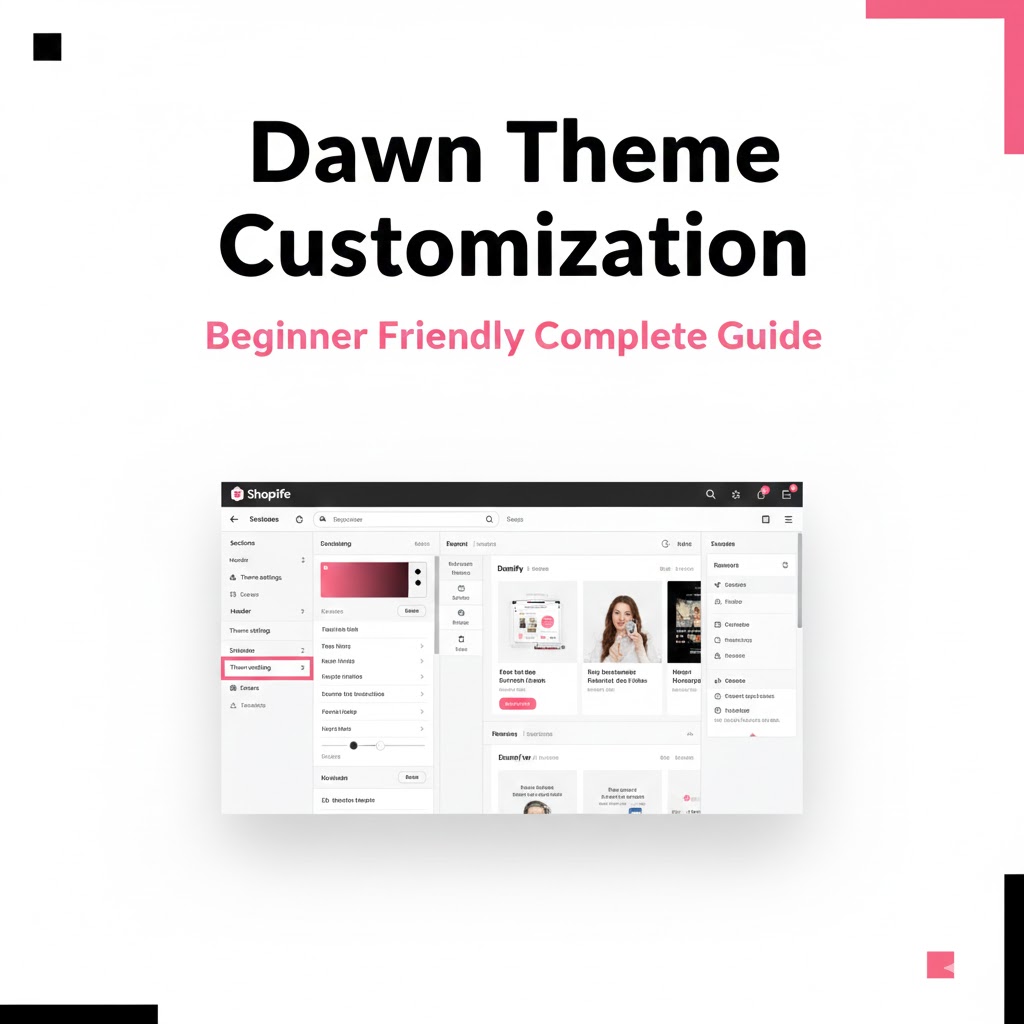
Dawn Theme Customization: A Complete Guide for Beginners
Are you looking to give your Shopify store a fresh, unique look? The Dawn theme is one of Shopify’s most popular free themes, known for its clean design, fast performance, and flexibility. In this guide, we’ll walk you through everything you need to know to customize the Dawn theme, even if you’re a beginner.
1. Why Choose the Dawn Theme?
Before diving into customization, it’s essential to understand why Dawn is a favorite among Shopify store owners:
Lightweight and fast: Optimized for quick loading times.
Mobile-friendly: Looks perfect on smartphones and tablets.
Flexible sections: Drag-and-drop functionality makes it easy to arrange your store layout.
Free and updated: Shopify frequently updates Dawn with new features.
2. Getting Started with Dawn Theme
Install the Dawn Theme
Go to your Shopify admin panel.
Navigate to Online Store > Themes > Free themes.
Click Explore free themes, select Dawn, and click Add.
Preview Your Theme
Before publishing, preview it to see how it looks with your content.
3. Customizing the Dawn Theme
A. Header Customization
Logo: Upload your store logo via Theme settings > Logo.
Navigation Menu: Adjust menus in Online Store > Navigation.
Announcement Bar: Add promotions or news via Theme settings > Announcement bar.
B. Homepage Sections
Dawn uses sections to create a flexible layout:
Image with Text: Highlight products or promotions.
Featured Products: Showcase your best-selling products.
Slideshow: Add visual appeal with images or videos.
Newsletter Signup: Build your email list directly from the homepage.
C. Product Page Customization
Product Media: Upload high-quality images.
Product Descriptions: Use headings, bullet points, and reviews for clarity.
Upsell Features: Add recommended products to increase sales.
D. Footer Customization
Quick Links: Add menus like About Us, Contact, and FAQs.
Social Media Icons: Connect your social platforms.
Newsletter Signup: Encourage visitors to subscribe for updates.
4. Using Theme Settings for Colors & Typography
Colors: Choose brand colors for headings, buttons, and links.
Typography: Select fonts that match your brand identity.
Buttons: Customize shape, color, and hover effects.
5. Advanced Customization Options
Custom CSS: For unique styling tweaks.
Custom Liquid Code: Modify layout and sections if you’re comfortable with coding.
Apps Integration: Use Shopify apps to enhance functionality like pop-ups, reviews, or countdown timers.
6. Tips for Beginners
Start simple: Don’t overwhelm your store with too many sections.
Test mobile view: Dawn is responsive, but always preview for mobile.
Use high-quality images: They make a big difference in professional appearance.
Save frequently: Always backup before making big changes.
7. Conclusion
Customizing the Dawn theme is an exciting way to make your Shopify store truly yours. By following these steps, beginners can quickly create a professional, engaging online store that reflects their brand identity. Remember, the key is to start simple and gradually explore advanced options as you grow more comfortable.
